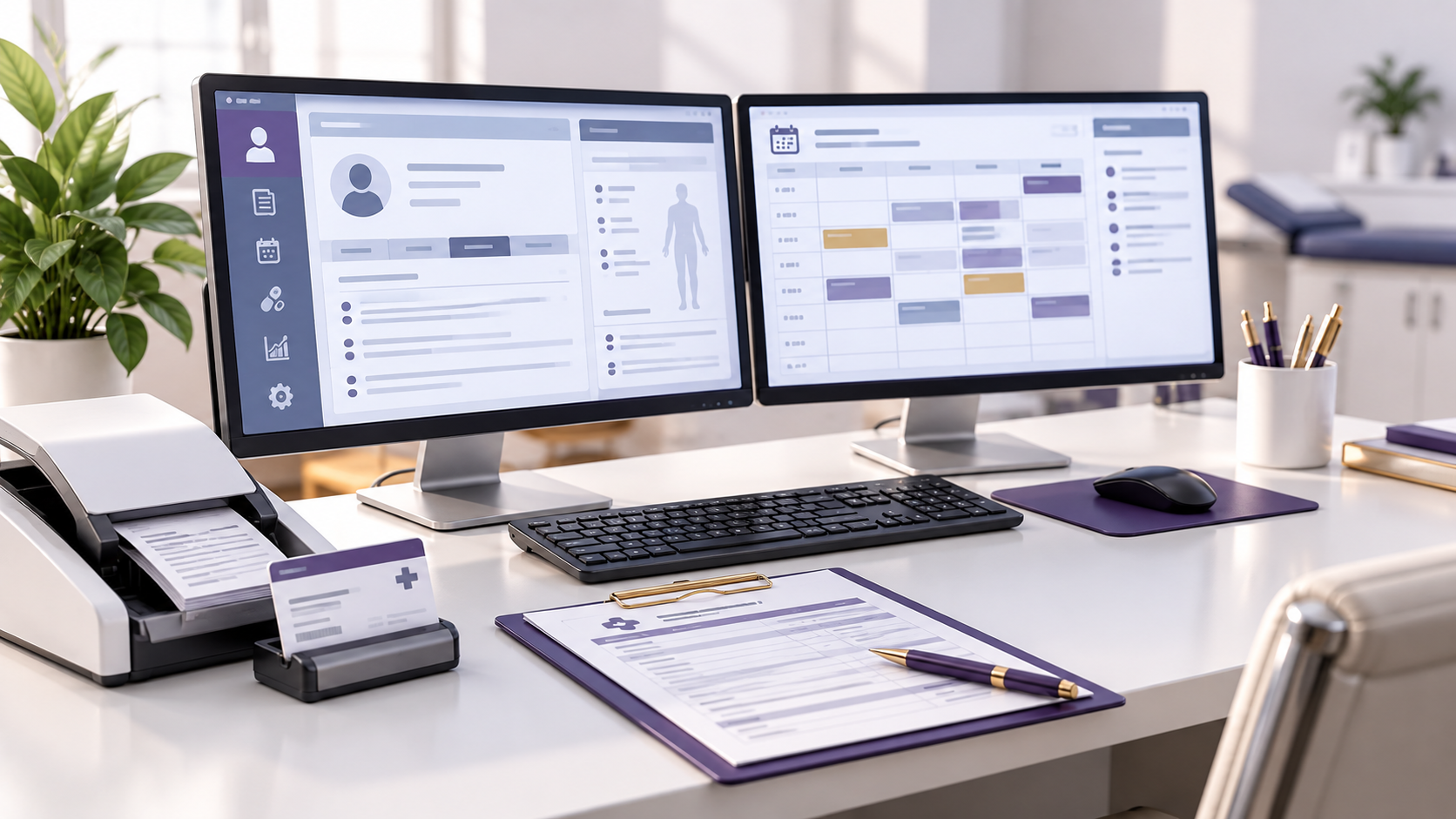
Computers for Medical Practices: How to Buy, Manage, and Replace Them
Computers are easy to treat as ordinary office equipment until they begin interfering with patient care and administrative work. Choosing computers for a medical practice requires more than comparing ordinary business or consumer hardware specifications.
In a medical practice, a workstation may support scheduling, registration, eligibility verification, EHR access, documentation, and electronic prescribing. It may also support billing, patient communication, imaging, telehealth, and connections to other clinical systems.
When that workstation performs poorly or becomes unsupported, the consequences extend well beyond an inconveniently slow computer.
That makes technology purchasing an operational decision.
The right approach is not to identify one processor, amount of memory, or replacement schedule that every medical practice should follow. Technology requirements vary considerably by EHR, specialty, applications, connected equipment, security architecture, and workflow.
Practices should instead build purchasing standards around what each device needs to do and what systems it must support. Those standards should also address how the device will be secured and maintained and how the practice will manage it throughout its useful life.
Key Takeaways
- Begin workstation purchasing decisions with the workflow the device must support rather than consumer specifications or brand preference.
- Confirm compatibility across the complete technology environment, including applications, operating systems, clinical devices, drivers, peripherals, security tools, and interfaces.
- Diagnose persistent performance problems before assuming hardware replacement is the appropriate solution.
- Standardize technology where practical while preserving different configurations for workflows with genuinely different requirements.
- Base replacement decisions on supportability, compatibility, security, performance, failure history, and operational importance rather than device age alone.
- Maintain an inventory and incorporate technology maintenance and replacement into ongoing financial planning.
Table of Contents
Start With the Workflow Before Choosing the Hardware
Before comparing computers, identify where the device will be used and what work will occur there.
A front-desk workstation may need to support scheduling, registration, document scanning, and insurance websites. It may also need to support payment processing, communications, and multiple applications used simultaneously.
A clinical workstation may interact with an EHR, diagnostic equipment, imaging applications, or other specialized software. A telehealth setup may place greater importance on audio, video, network performance, and privacy.
Those environments do not necessarily need identical hardware.
Technology selection should therefore begin with a basic operational question:
What does this workstation need to support during a normal workday?
From there, leadership and IT can determine the appropriate configuration.
Make Sure the Technology Environment Works Together
Use Vendor Requirements as the Starting Point
EHRs and other important applications may have technical requirements or supported configurations.
Practices should review those requirements before purchasing hardware rather than assuming that a newer or more expensive computer will automatically be compatible.
The same applies to connected clinical equipment.
A device may require a particular operating system, interface, port, driver, network configuration, display specification, or locally installed application. Imaging and other specialized applications may have requirements that differ substantially from routine administrative workstations.
Compatibility should be confirmed across the technology environment before equipment is purchased or deployed.
Technical Deep Dive
Compatibility is a chain, not a single specification. A workstation can meet an EHR’s requirements yet still fail operationally if a clinical device, driver, peripheral, security tool, or interface depends on a different configuration. This makes validation of the complete technology path essential before deployment.
| Decision Area | Questions to Resolve Before Purchase |
|---|---|
| Core applications | What hardware and operating systems do the EHR and other applications support? |
| Clinical devices | Are specific interfaces, ports, drivers, displays, or local applications required? |
| Security | Can the device support the practice’s required security configuration and management tools? |
| Workflow | How many applications and displays does the user need during normal work? |
| Support | Can internal or outsourced IT efficiently manage the device? |
| Lifecycle | How long will the operating system and hardware remain supportable? |
| Continuity | What happens if this workstation or device becomes unavailable? |
| Cost | What are the purchase, support, licensing, maintenance, and replacement costs? |
This prevents purchasing decisions from being based primarily on consumer specifications or brand preference.
Treat Security as a System Requirement
A computer does not become appropriate for a healthcare environment simply because it is fast enough to run the EHR.
Security and manageability matter throughout the device lifecycle.
Depending on the practice’s environment, applicable requirements, and risk analysis, security measures may include encryption, authentication, access management, security updates, endpoint protection, device-management capabilities, automatic locking, backup or recovery processes, and other safeguards.
The appropriate measures should be determined through the practice’s broader security and risk-management processes rather than treated as a universal HIPAA technology checklist.
One of the most important lifecycle questions is whether the operating system, security tools, drivers, and other required software remain supported. Another is whether they can continue receiving necessary updates.
A workstation that still turns on may nevertheless become an operational and security concern when important software can no longer be maintained appropriately.
Compliance Alert
Functional hardware should not be confused with supportable hardware. Once required operating systems, security components, or drivers can no longer be maintained, continued use may introduce risk that should be evaluated through the practice’s security and lifecycle processes rather than deferred until physical failure.
Plan Connected Medical Devices Carefully
Clinical equipment can introduce additional complexity because the relationship between the medical device, workstation, software, network, and EHR may be tightly connected.
Before implementation, practices should understand:
- what systems the device must communicate with
- how information moves into the clinical record
- what workstation, operating-system, or network requirements apply
- who supports each component when the integration fails
- how access and security will be managed
- what the downtime workflow is if the device or interface becomes unavailable
That last question is especially important.
Integrations can reduce manual work when they function properly, but the practice still needs to know how essential clinical or administrative work continues during an outage.
Technical Deep Dive
Connected-device failures can cross organizational support boundaries. The workstation, network, interface, EHR, and medical device may have different owners or vendors. Defining responsibility and the fallback workflow before deployment reduces the risk of an outage becoming a prolonged troubleshooting exercise with no clear escalation path.
Involve IT Before the Purchase
IT involvement is most useful before equipment is purchased, not after a box arrives and someone discovers it does not work with an important system.
Whether the practice uses internal staff, an outsourced medical practice IT provider, or another qualified resource, technical review can help evaluate compatibility, deployment, security configuration, and networking. It can also help evaluate management, support, and lifecycle considerations.
Technology decisions may also need input from other stakeholders.
Clinical staff understand how equipment is used during care. Administrative employees understand front-office and revenue-cycle workflows. EHR and device vendors can identify supported configurations.
The strongest purchasing decision often comes from combining those perspectives rather than allowing one department to choose technology in isolation.
Evaluate Computer Performance as a Workflow Issue
A slow workstation affects more than employee satisfaction.
Consider a front-office employee who repeatedly waits for applications to load while a patient is checking in. The delay may affect registration, eligibility work, document scanning, payment collection, and the next patient in line.
A similar problem in a clinical environment can interfere with documentation or access to information needed during the encounter.
Small delays can become meaningful when they occur hundreds of times across multiple employees.
Operational Snapshot
Technology performance should be evaluated at workflow scale, not only by individual complaints. A delay of a few seconds can become a material capacity issue when multiplied across repeated transactions, multiple employees, and an entire workday, so recurring friction may warrant measurement before replacement decisions are made.
Practices should therefore investigate persistent technology-related workflow problems instead of assuming staff simply need to tolerate them.
At the same time, slow performance does not automatically mean the computer needs to be replaced. The underlying problem could involve the application, network, internet connection, configuration, storage, peripherals, security software, or another component of the environment.
Diagnosis should come before purchasing.
Standardize the Technology Environment Where Practical
Allowing every department or employee to purchase different computers can create unnecessary support complexity.
Standardization can simplify deployment, troubleshooting, replacement, security management, accessories, and staff support.
That does not mean every workstation needs identical specifications.
A practice might maintain several approved configurations based on use—for example, a standard administrative workstation, a clinical configuration, and a higher-requirement workstation for specialized applications.
Operational Snapshot
Standardization is most useful when it reduces unnecessary variation without forcing unlike workflows onto the same configuration. A small set of approved device profiles can preserve role-specific requirements. It can also give IT a predictable environment for deployment, security management, troubleshooting, spare equipment, and replacement planning.
The goal is controlled variation.
When IT understands the approved environment, it becomes easier to maintain devices consistently and troubleshoot problems without dealing with an unnecessary collection of unrelated hardware.
Evaluate the Entire Workstation
The computer itself is only one component of the user’s technology environment.
Monitors, docking stations, scanners, printers, webcams, microphones, headsets, signature devices, payment hardware, and other peripherals can all affect workflow.
The value of these tools depends on the work being performed.
Dual monitors, for example, may help an employee who frequently needs to compare information across applications. That does not mean dual monitors automatically “double efficiency” or that every workstation needs them.
The same principle applies to wireless peripherals and docking stations. Convenience needs to be weighed against support, security, cleaning, and battery management. Compatibility and the physical environment in which the equipment will be used also need to be considered.
Technology should solve a workflow problem rather than be added simply because it is available.
Manage Technology Through Its Lifecycle
Do Not Use a Universal Replacement Schedule
Replacing every workstation after an arbitrary number of years can create unnecessary spending. Waiting until every computer fails can create a different problem.
A better approach is lifecycle management.
Replacement decisions can then consider vendor and operating-system support, recurring failures, performance, compatibility with required applications, repair cost, security requirements, and operational importance.
A five-year-old workstation that remains supported and performs its assigned role appropriately may not present the same concern as a newer device that cannot support a critical application.
Age is useful information, but it should not be the only criterion.
Operational Snapshot
Replacement priority is better treated as a risk-ranking exercise than an age-ranking exercise. Combining support status, failure history, compatibility, security requirements, and operational criticality helps leadership direct capital toward devices whose loss or obsolescence would create the greatest disruption.
Budget for Technology as an Ongoing Operating Need
Technology replacement should not become an emergency expense every time equipment fails.
Medical practices know that computers, networking equipment, peripherals, and other devices will eventually require maintenance or replacement. Those costs should therefore be incorporated into financial planning.
A useful technology budget should look beyond the purchase price.
Licensing, warranties, support agreements, implementation, and security tools can all contribute to the total cost of ownership. Accessories, maintenance, training, and eventual replacement can also contribute to that cost.
The lowest initial purchase price may not produce the lowest long-term cost if the device is difficult to support, incompatible with existing systems, or replaced prematurely.
Conversely, buying significantly more computing capacity than the workflow is likely to require can waste capital.
The goal is appropriate capacity with a manageable lifecycle.
Establish an Inventory and Replacement Plan
Practices often lose visibility into technology gradually.
A few computers are replaced after failures. Another department buys a different model. An old laptop remains in use because no one knows who owns it. A workstation is reassigned without updating records.
Eventually, leadership has little idea what equipment exists or which devices are approaching support problems.
A basic technology inventory can prevent that.
For important devices, the practice should be able to identify the device, location or assigned user, and function. The practice should also be able to identify relevant hardware or operating-system information, support status, and anticipated replacement needs.
This information supports budgeting while also helping IT manage the environment.
Operational Snapshot
An inventory becomes more valuable when it functions as planning data rather than a static equipment list. Linking each important device to its role, support condition, and anticipated replacement need gives leadership visibility into upcoming capital demands while helping IT identify concentrated operational risk before failures occur.
Frequently Asked Questions About Computers in a Medical Practice
What should a medical practice look for when buying computers?
Start with the work the computer needs to support. Consider EHR and software requirements, connected clinical devices, peripherals, security tools, operating-system compatibility, supportability, and expected workload. Administrative, clinical, telehealth, and specialized workstations may require different configurations.
How often should a medical practice replace its computers?
There is no universal replacement schedule for every medical practice. Consider operating-system and vendor support, security requirements, application compatibility, performance, recurring failures, repair costs, and operational importance. Age can help with planning, but it should not be the only reason a workstation is replaced.
Does every computer in a medical practice need the same specifications?
No. Standardization can simplify deployment, security, troubleshooting, and replacement, but different workflows may need different configurations. A practice can maintain several approved workstation profiles for administrative, clinical, telehealth, or specialized applications rather than requiring identical hardware everywhere.
Should a slow medical office computer automatically be replaced?
Not necessarily. Slow performance may originate from the computer, application, network, internet connection, storage, peripherals, security software, configuration, or another part of the technology environment. Diagnose the underlying problem before assuming that replacing the workstation will correct it.
Does HIPAA require specific computers or hardware for a medical practice?
The HIPAA Security Rule does not prescribe a particular computer brand or universal hardware configuration. Regulated entities must implement reasonable and appropriate HIPAA safeguards for ePHI based on their circumstances and risks. Workstation use, workstation security, access controls, and other applicable safeguards should therefore be considered when selecting and managing devices.
What should a medical practice include in a technology inventory?
A useful inventory should identify important devices, their location or assigned user, operational purpose, relevant hardware or operating-system information, support status, and anticipated replacement needs. This helps IT manage equipment while giving leadership better visibility into future expenses and replacement priorities.
Why should IT be involved before a medical practice buys computers or connected devices?
IT can evaluate compatibility, security configuration, networking, deployment, management, support, and lifecycle requirements before the purchase. Early review may uncover conflicts involving EHRs, clinical devices, drivers, interfaces, or peripherals that would not be apparent from the computer’s specifications alone.
Technology Should Support the Practice, Not Dictate the Workflow
Computers and connected devices are infrastructure.
When they are selected well, employees generally should not have to think much about them. The technology supports the applications, workflows, communication, and clinical systems employees need to perform their jobs.
When selection and lifecycle management are poor, technology becomes part of the workload itself.
Staff wait for systems, create workarounds, repeatedly contact support, move between incompatible devices, or lose access to tools they depend on.
Medical practices can reduce those problems by approaching technology as an operational system rather than a collection of individual purchases.
Start with workflow requirements. Confirm application and device compatibility. Build security and supportability into the decision. Standardize where practical. Maintain an inventory. Budget for the lifecycle rather than waiting for failure.
The objective is not to buy the fastest computer, replace equipment according to a universal timetable, or give every stakeholder purchasing authority. It is to identify compatibility, security, workflow, support, and lifecycle requirements before purchasing decisions are finalized.
The result should be a technology environment that remains reliable, supportable, secure, and appropriate for the work the practice needs to perform.
About the Author
Jennifer Blevens-Smith is the founder and principal consultant of Integral Clinic Solutions. With more than two decades of experience supporting independent medical practices, she helps physicians, practice administrators, and healthcare leaders strengthen credentialing, payer contracting, revenue cycle operations, compliance workflows, and practice management. Her work focuses on translating complex healthcare requirements into practical operational processes. These processes improve consistency, reduce administrative burden, and support long-term practice success.
Need Help Strengthening Your Medical Practice Operations?
Integral Clinic Solutions provides practical support for medical practices navigating credentialing, contracting, revenue cycle operations, compliance workflows, front-office systems, and practice management challenges.
Explore more operational guidance, compliance insights, and healthcare business resources on the Integral Clinic Solutions blog. New articles and updates are added regularly for practice owners, administrators, and healthcare teams.
Disclaimer: This content is for informational and educational purposes only and does not constitute legal, coding, billing, compliance, financial, or medical advice. Healthcare practices must verify all operational requirements with applicable payers, regulators, and qualified professionals. Read our full Legal & Compliance Disclaimer.
“`